
Envelope
The Envelope Page provides a dedicated interface for setting, controlling, and sequencing ADSR (Attack, Decay, Sustain, Release) envelopes for each sequencer track. Each track contains its own dedicated envelope, which can be triggered for each note played and modulate external parameters (e.g., connected devices via MIDI Control Change and Control Voltage).
Unlike LFOs, which continuously oscillate, envelopes are triggered by the start of each note and their duration is determined by the note’s length. CV Envelopes are unipolar, ranging from 0V to +10V when used on a CV Track.
As with the LFOs system, Reliq employs an Envelope Slot mechanism that allows for the storage, recall, and sequencing of different envelope configurations.
Interface Overview
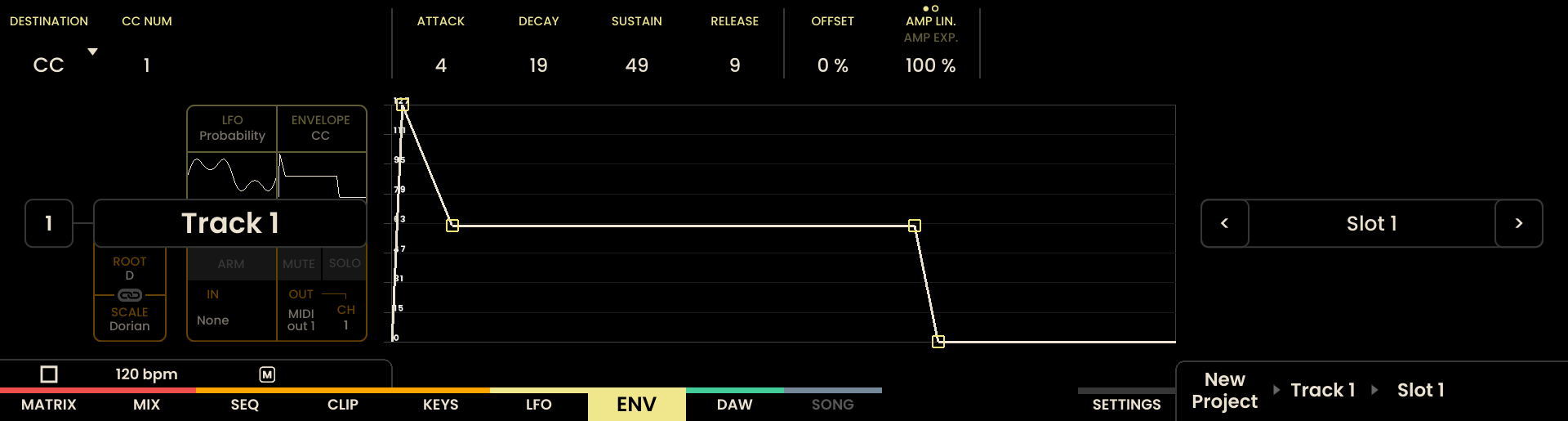
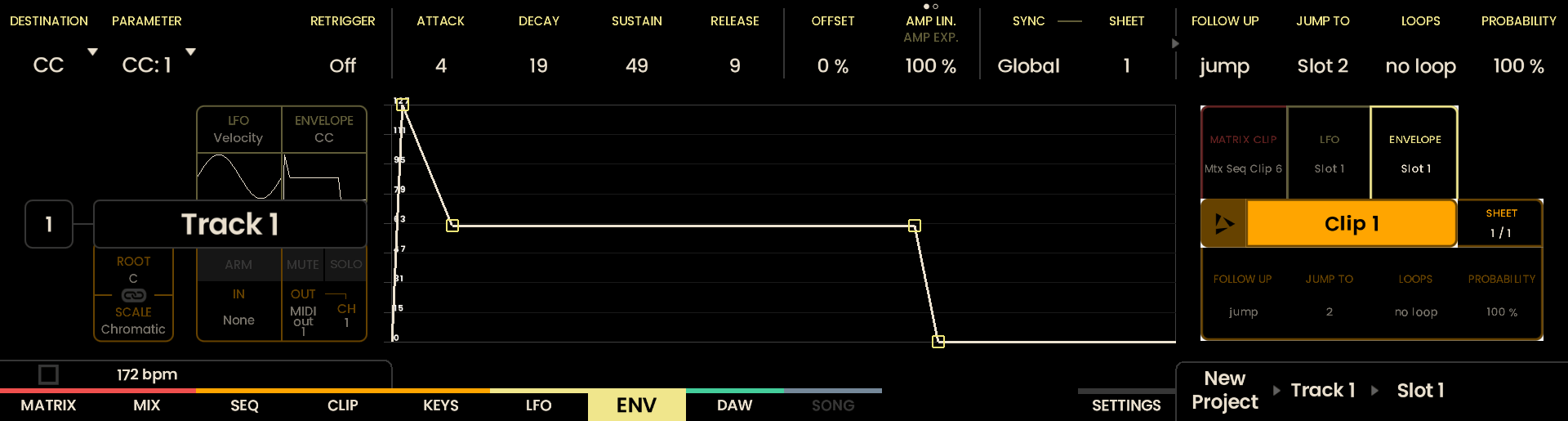
The Envelope Page displays the selected track name and the active Envelope Slot for that track. The ADSR envelope curve is shown in the center of the display, while the top part of the display shows the slot settings, including ATTACK, DECAY, SUSTAIN, RELEASE, SHAPE, and AMPLITUDE.
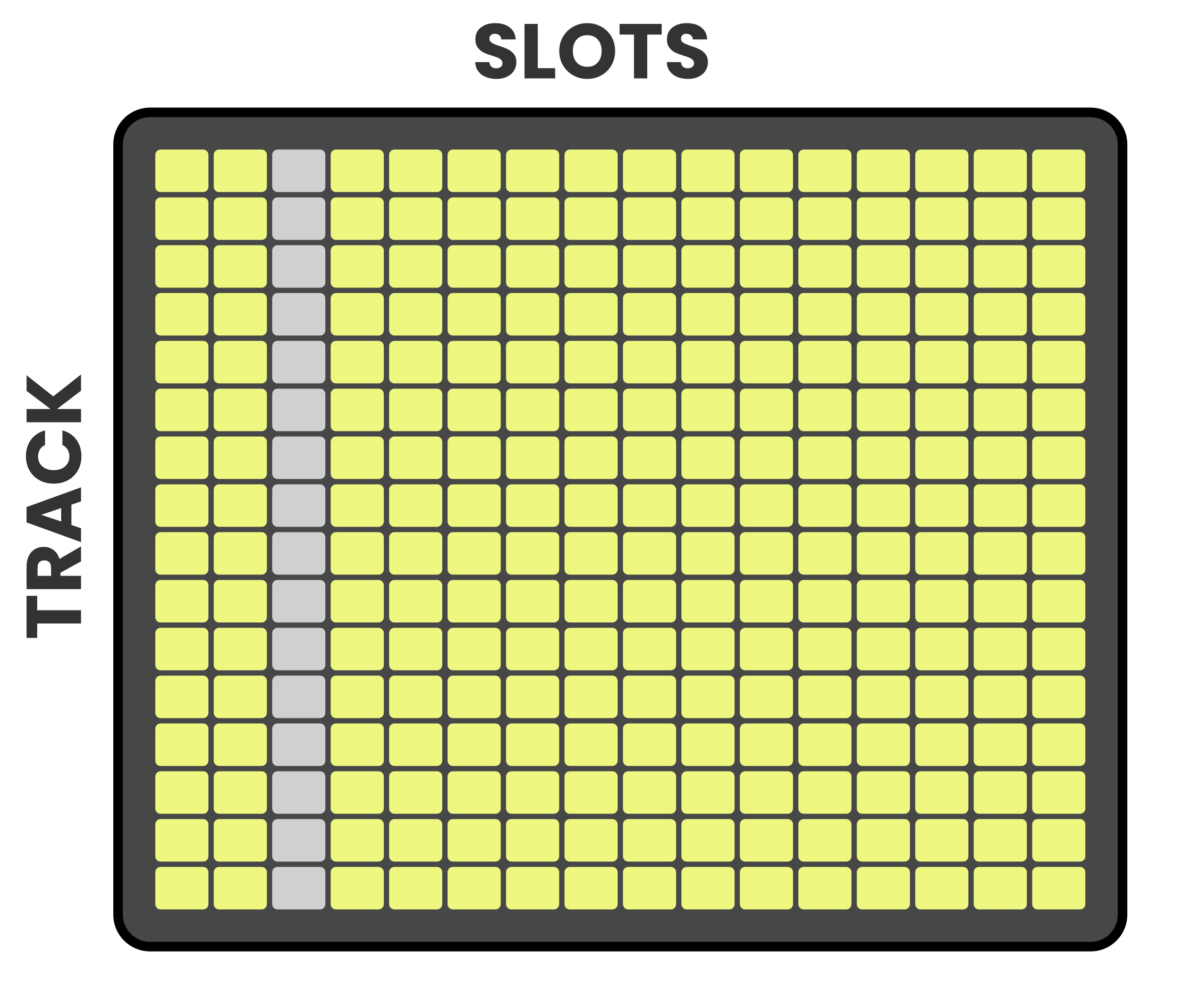
On the Grid Pads, envelopes for each track are arranged horizontally. Each row corresponds to a track, and each column represents the envelope slots stored for that track.
Selecting a track is done by pressing the corresponding Track Button , and selecting an envelope slot is achieved by pressing the appropriate Slot Pad.
Reliq provides a dedicated envelope per track, with up to 128 slots per track per project. By creating, sequencing, and adjusting envelope slots in real time, envelopes can be used as a dynamic tool to shape the evolution of a sound.
Envelope Slot Settings
Each track’s envelope has 128 slots that can be stored, recalled, and sequenced. Each envelope Slot contains the following settings:
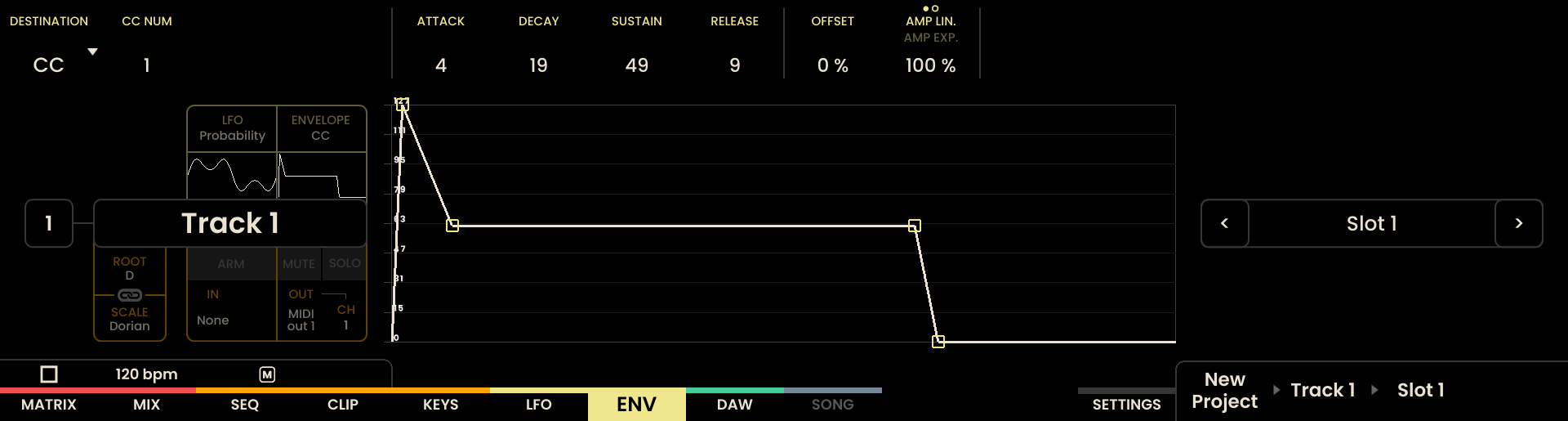
DESTINATION
Defines the destination of the envelope modulation, which can be either MIDI Control Change or Control Voltage. The LFO destinations will differ depending on whether the current track output is MIDI or CV.
MIDI Out:
CVA
CVB
Mix In
Mix Out
CC — selects a Control Change destination. If an Instrument is assigned to the track this will present named device parameters; otherwise raw CC numbers are used.
CV Out:
CVA
CVB
Mix In
Mix Out
MIDI Modulation Stacking
When an LFO and an Envelope are assigned to the same parameter (CC) output they will be summed together.
CV Modulation Stacking
CVA Output: If an Envelope is assigned to CVA, it is going to be summed to the Pitch CV of the notes in the track. If an LFO and an Envelope are assigned to CVA, the output is going to be the result of Pitch + LFO + Envelope.
CVB Output: If an Envelope is assigned to CVB, it is going to be modulated by the Velocity value of the notes in the track. If an LFO and an Envelope are assigned to CVB, the output is going to be the result of LFO + Envelope, modulated by Velocity.
MIX In and Out destinations
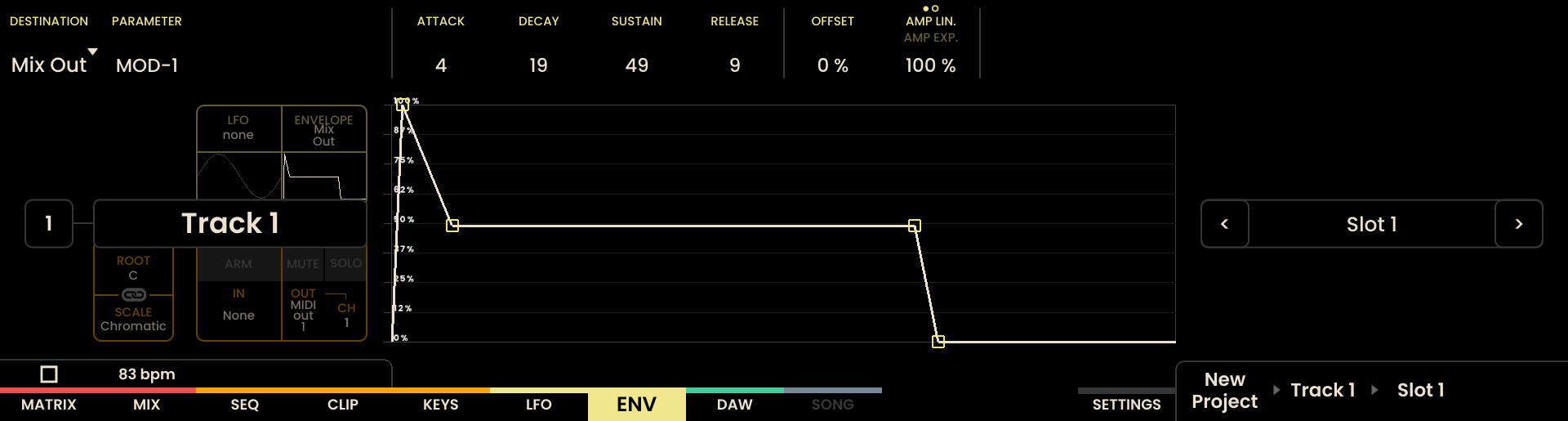
The Mix In and Mix Out destinations allow Envelopes to modulate a node’s input or output volume on the Mix Page. When an Envelope is assigned to a Mix destination, the Envelope modulates the corresponding node’s volume; the current volume setting on the Mix page defines the modulation range.
For example, if a node’s input volume is set to 50% and an Envelope with offset 0 and amplitude 100% is assigned to Mix In, the Envelope will modulate the input volume between 0% and 50%.
MIX Modulation Stacking
Multiple Envelopes and LFOs can be assigned to the same Mix destination, and their modulation will be summed together. For example, if two Envelopes are assigned to the same Mix In channel, the resulting modulation will be the sum of both Envelopes, modulating the node’s input volume accordingly.
ATTACK
The ATTACK parameter determines how quickly the envelope reaches its maximum value. The value ranges from 0 to 100.
DECAY
The DECAY parameter defines the time taken for the envelope to fall to the SUSTAIN level after reaching its peak. The value ranges from 0 to 100.
SUSTAIN
The SUSTAIN parameter sets the level the envelope holds while the note is sustained. This value is set as a percentage, ranging from 0 to 100.
RELEASE
The RELEASE parameter determines how quickly the envelope returns to zero after the note is released. The value ranges from 0 to 100.
SHAPE
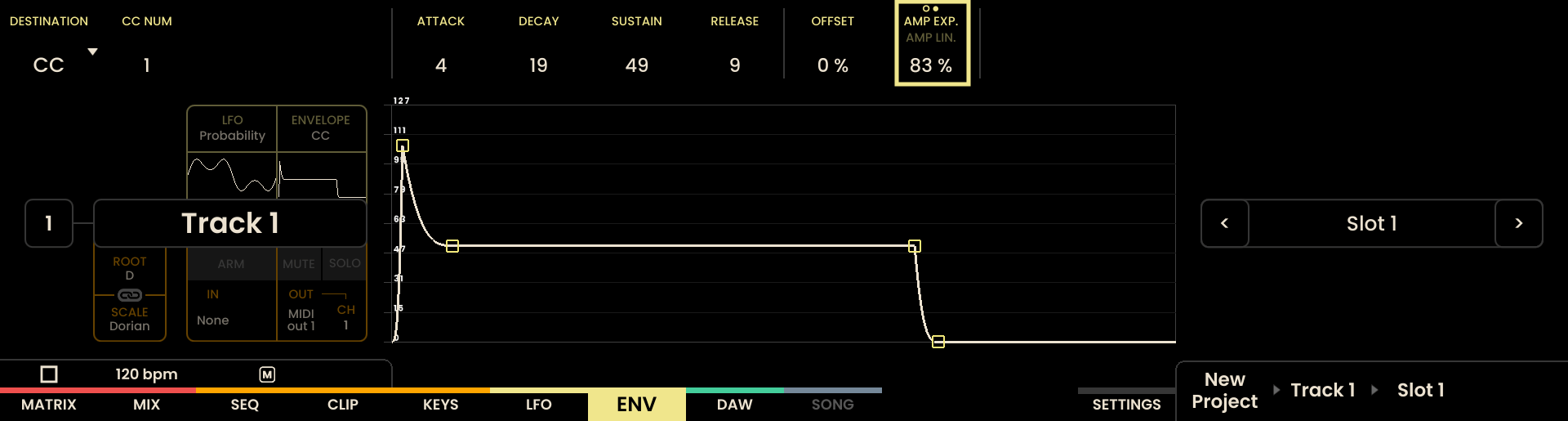
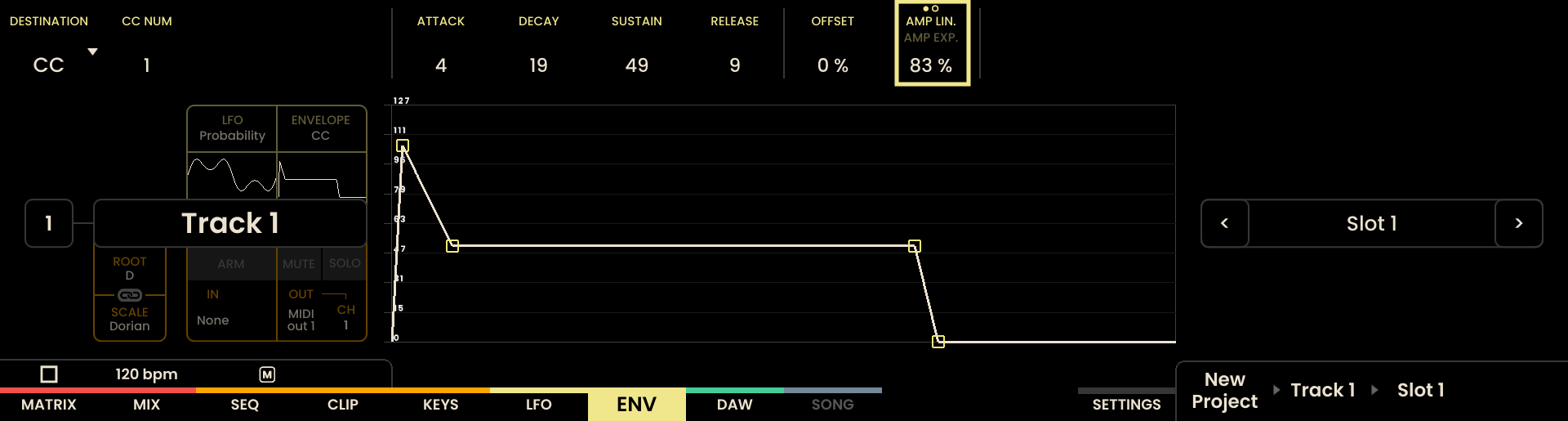
The SHAPE parameter defines whether the envelope’s transitions between stages are linear or exponential. This setting applies across the entire envelope.
AMPLITUDE
The AMPLITUDE parameter controls the overall amplitude of the envelope. When used in a CV Track, the envelope is unipolar, meaning it ranges from 0V to +10V. The amplitude setting determines the maximum voltage of the envelope.
Range: 0–100%
OFFSET
The OFFSET parameter controls the offset (bias) of the envelope. When used in a CV Track, an increment of 1 corresponds to an increment of 0.1V.
Range: -100% – +100%
RETRIGGER
The RETRIGGER parameter controls how the envelope responds when notes overlap.
Off (default): The envelope behaves in a legato fashion — when a new note starts while the previous note is still held, the envelope continues from its current stage without restarting.
On: The envelope restarts from its attack stage on every note-on, even if a previous note is still held.
Retrigger is set per envelope slot, so different slots on the same track can use different retrigger behavior.
Creating and Navigating Slots
Envelope slots are represented on the Grid Pads, where each row corresponds to a track, and each column represents an envelope Slot. Empty slots remain unlit, while slots with content are illuminated in yellow. The active slot for each track is highlighted in white.

To create a new slot, press an empty Slot Pad. The settings for that slot will appear at the top of the display. Any modifications made to a slot are saved automatically.

Navigating between slots within the selected track is done by using the Arrow Buttons or by pressing the corresponding Slot Pad directly. The current slot number is displayed in the bottom-right corner of the interface.
When triggering a slot in real time, the change is timed by the SYNC setting of the outgoing slot (see Slot Sync). With the default Internal setting the slot is synchronized with the sequencer clock and is triggered at the End Of Sheet (EOS). While a change is queued, the target slot is illuminated in green; a change away from a slot set to Instant is not queued and takes effect at once.

To trigger a column of slots for all tracks, press and hold the SHIFT Button and the corresponding Page Button above the column where all slots should be triggered. Each track’s change is timed by the SYNC of the slot that track is leaving.
Sequencing Slots via Follow-Up Actions
Each Envelope Slot can be assigned a Follow Up action, which determines the action that occurs when the slot hands the track over to the next slot. The follow-up function can trigger another slot, or jump to a specific slot. When the hand-over happens is set by the slot’s SYNC setting (see Slot Sync).
Available follow-up actions include:
None: The slot loops without any follow-up action.
Prev: The previous slot in sequence is triggered.
Next: The next slot in sequence is triggered.
Any: A random slot is triggered.
Other: A random slot is triggered, except the current one.
First: The first slot in sequence is triggered.
Last: The last slot in sequence is triggered.
Jump: The slot jumps to a specified slot.
Additional parameters for follow-up actions include:
Loops: Specifies how many times the slot will loop before the follow-up action is triggered. It has no effect when the slot’s SYNC is set to Track.
Probability: Defines the likelihood of the follow-up action occurring when the follow-up is due.
For the Jump follow-up action, the Jump To parameter specifies the target slot for the jump.
To assign a Follow Up action, press and hold the desired slot to enable Parameter Lock. The follow-up parameters will appear in the upper-right corner of the display.
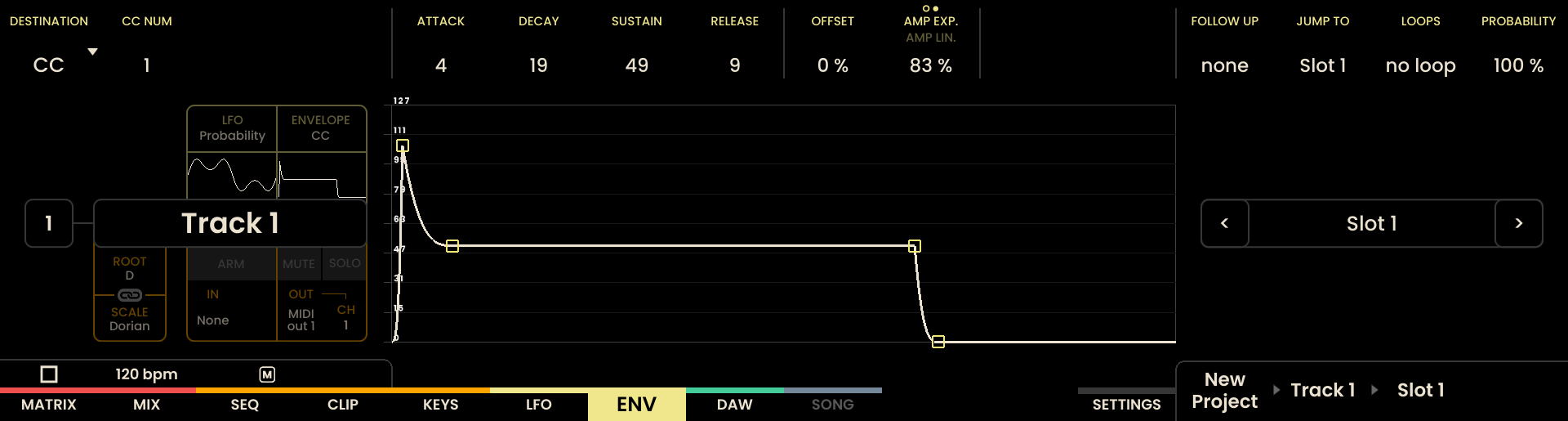
The encoder above each parameter label is used to adjust the settings. For quick configuration, press and hold the current slot, then press the slot to which it should jump. The follow-up parameters will be set automatically.
To create a chain of slots with automatic progression, hold the Track Button of the desired track, then press the slot at the beginning of the chain, followed by the slot at the end of the chain. Reliq will automatically set all slots in between to Follow Up - Next, with the final slot set to the first one of the chain, creating a seamless playback chain.
Slot Sync NEW
Every envelope Slot carries a SYNC setting. It decides when a change away from that slot takes effect, and it times both a manual trigger — pressing a Slot Pad — and the slot’s Follow Up.
As on the Clip Page, the SYNC that times a change belongs to the outgoing slot — the slot currently playing on that track — not to the incoming slot that the pad press launches, and the Follow Up is timed by the same setting. See Clip Sync for the rule in full.
Hold a Slot Pad to open the Parameter Lock view. SYNC and the sync point sit on the two encoders immediately to the left of FOLLOW UP, and act on the slot you are holding, not on the slot that is playing.
Hold a Slot Pad to enable Parameter Lock. SYNC and the sync point sit on the two encoders immediately to the left of FOLLOW UP. They act on the slot you are holding, not on the slot that is playing.
There is no RESET. It belongs to clips only, so the right encoder sets the sync point and nothing else — there is no click to swap it.
Internal has no adjustable point. A slot is a single Sheet, so its point is fixed at 1 and its tile is not shown. The tile is hidden in Instant too, which has no point at all.
Track follows a sequencer track. TRACK NUM selects a sequencer track, 1–16, or the Matrix Sequencer (MATRIX), and the slot follows that track’s Clip. LOOPS has no effect in this mode: the follow-up fires each time the followed track completes a pass.
A queued slot lights green until the change fires. A slot left in Instant is never queued, so no green pad appears for it.
Envelope Slot Functions
The following functions are available on the Envelope Page, similar to those found on the LFO Page:
: Trigger all slots in a specific column.
: Navigate to the next or previous slot on the selected track.
: Navigate to the next or previous slot pages for the selected track.
: Undo/Redo the last action on the Envelope page.
Slot : Copy a specific slot to the clipboard.
Slot : Paste a slot from the clipboard to the selected position. Pasting over an existing slot will overwrite its content.
Hold UNDO Hold Slot : Delete the selected Slot.
Select on the Envelope Page NEW
Use Select Mode to act on several envelope slots at once. The mechanics that are the same on every page are described in Select Mode. This section covers what is specific to the Envelope Page.
Select slots with the Grid Pads only. A selection can hold slots from several tracks and from several slot pages. A selected slot lights green in place of the colour it would otherwise show.
An empty slot can be selected. An empty slot already holds the default envelope values, so a bulk edit fills it only when it actually changes one of them: editing ATTACK, DECAY, SUSTAIN, RELEASE, AMPLITUDE, OFFSET, RETRIGGER or SHAPE writes the lead’s value into the slot, and the slot then holds content. Confirming a DESTINATION fills an empty slot the same way, unless that destination cannot be applied to it — a CC destination is skipped on a slot on a CV Track, which stays empty. The Follow Up and SYNC parameters never fill an empty slot.
Selecting slots does not move the selected track. The first bulk edit moves the selected track to the lead’s track; copying, pasting and deleting do not move it.
Editing Selected Slots
Turning the encoder above one of these parameters applies the change across the whole selection: ATTACK, DECAY, SUSTAIN, RELEASE, AMPLITUDE, OFFSET, RETRIGGER, SYNC and the sync point on the encoder next to it, FOLLOW UP, JUMP TO, LOOPS and PROBABILITY.
The four Follow Up parameters and the two SYNC parameters can be turned without holding a slot pad: the Parameter Lock view opens on the lead as soon as a slot is selected.
Press the AMPLITUDE encoder to switch SHAPE between linear and exponential. The lead’s new shape is applied to every selected slot.
DESTINATION and the parameter next to it are confirmed with an encoder press, so they behave differently:
Turning the DESTINATION encoder changes the lead only. Press the encoder to confirm, and the lead’s destination is applied to every selected slot. A slot on a track whose output cannot take that destination keeps the destination it had: a CC destination is not applied to a slot on a CV Track.
When the lead’s destination is Mix In or Mix Out, pressing the encoder to confirm a channel applies that channel to every selected slot with the same Mix destination. Slots with a different destination keep theirs.
The CC number is locked while Select Mode is on: turning its encoder leaves every CC number unchanged, and confirming a destination or a Mix node never writes a CC number to the selection. Each slot keeps the CC number it had. Holding SHIFT and clicking the encoder still resets the CC number to its default, but only on the active slot of the selected track — it does not act on the selection.
Copying, Pasting and Deleting Slots
Press COPY to copy the selected slots, then hold PASTE and press a Grid Pad to rebuild them from that pad onwards.
Empty slots in the copied block are skipped, and the slots they would have landed on are left as they are. A pasted slot takes the source slot’s envelope settings, and its Follow Up settings are reset.
Hold UNDO and press a Grid Pad to delete the contents of every selected slot in one action. The selection is then cleared.
Technical Specifications
Specification | Details |
|---|---|
Maximum Slots per Track | 128 slots |
Envelope Stages | ADSR (Attack, Decay, Sustain, Release) |
Amplitude Range (CV Tracks) | 0V to +10V |
Shape Options | Linear or Exponential |
Attack, Decay, Sustain, Release Range | 0 to 100 |